Running Migrations
How Migrations Are Applied
In SQL Migration Tool, migrations are grouped into projects. Each project has its own set of up and down migrations. When a user connects to the database and runs these migrations, the tool checks if the tracking table named in the project settings exists in the database. If not, it creates it. Then it checks the list of up migrations in the project against the rows in the database. Missing rows indicate that those migrations have not been applied.
This approach allows multiple users to write their own migrations and commit them to version control. The final destination will combine all those migrations in the proper order so they can be applied to the database.
Every added migration can also be reverted, provided the file is not marked as irreversible. Reverting a migration runs the file with the same name from the down migrations folder and removes the row from the tracking table.
Applying migrations
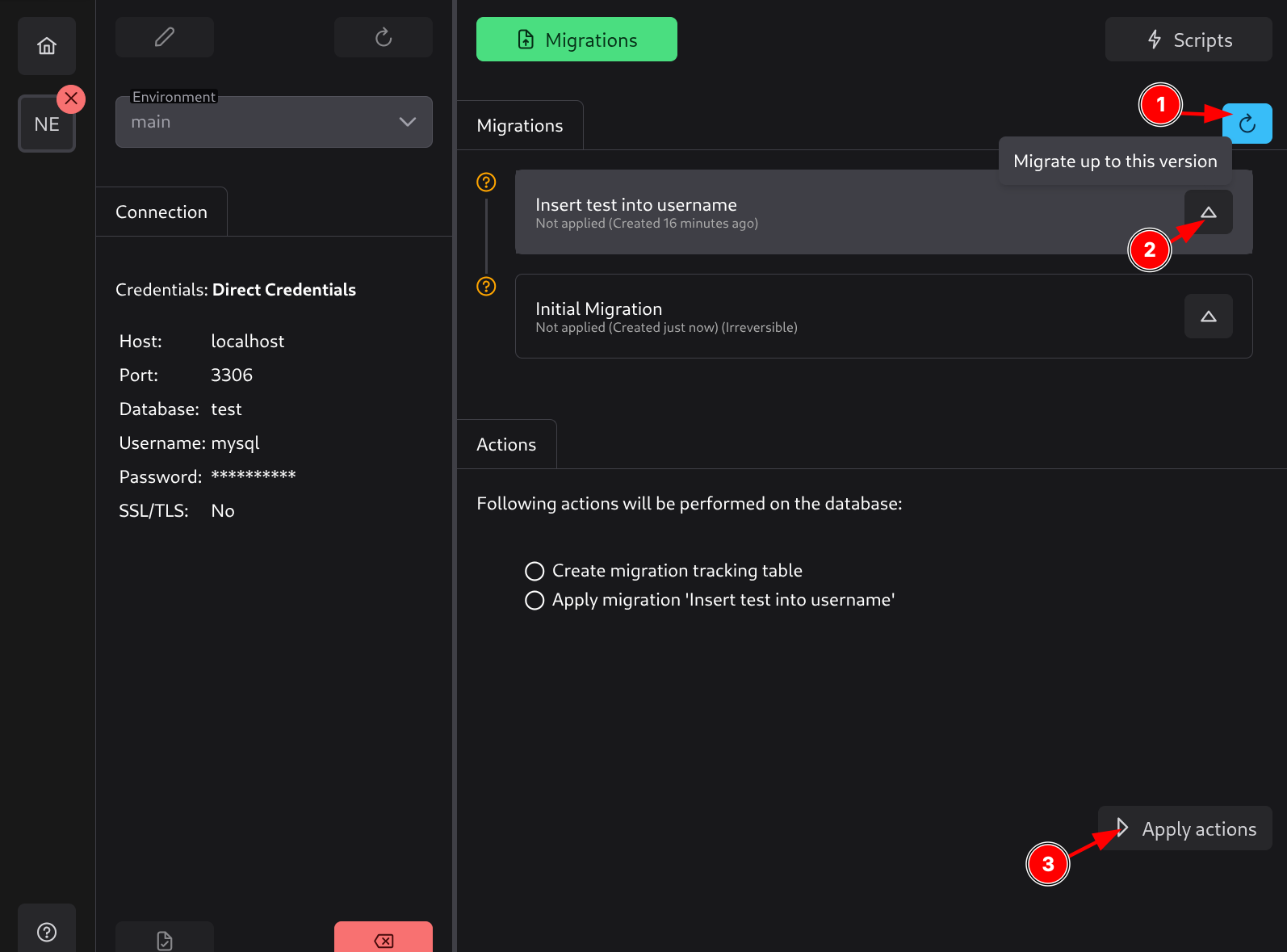
Once connected, you will see a list of migrations. Migrations are shown in descending order with the newest one at the top.
Next to each migration, an icon will indicate whether the migration has not yet been applied (question mark) or has been applied (green checkmark).
You can click Refresh (1) to reload the state from the database and refresh the list.
You can click on the desired migration to apply all migrations from the last applied state in the database up to that migration (2).
Once you click on an unapplied migration, the actions will be shown below. In this case, since we do not have a tracking table created, it will also show that action.
To perform those actions, click Apply Actions (3).
Reverting Migrations
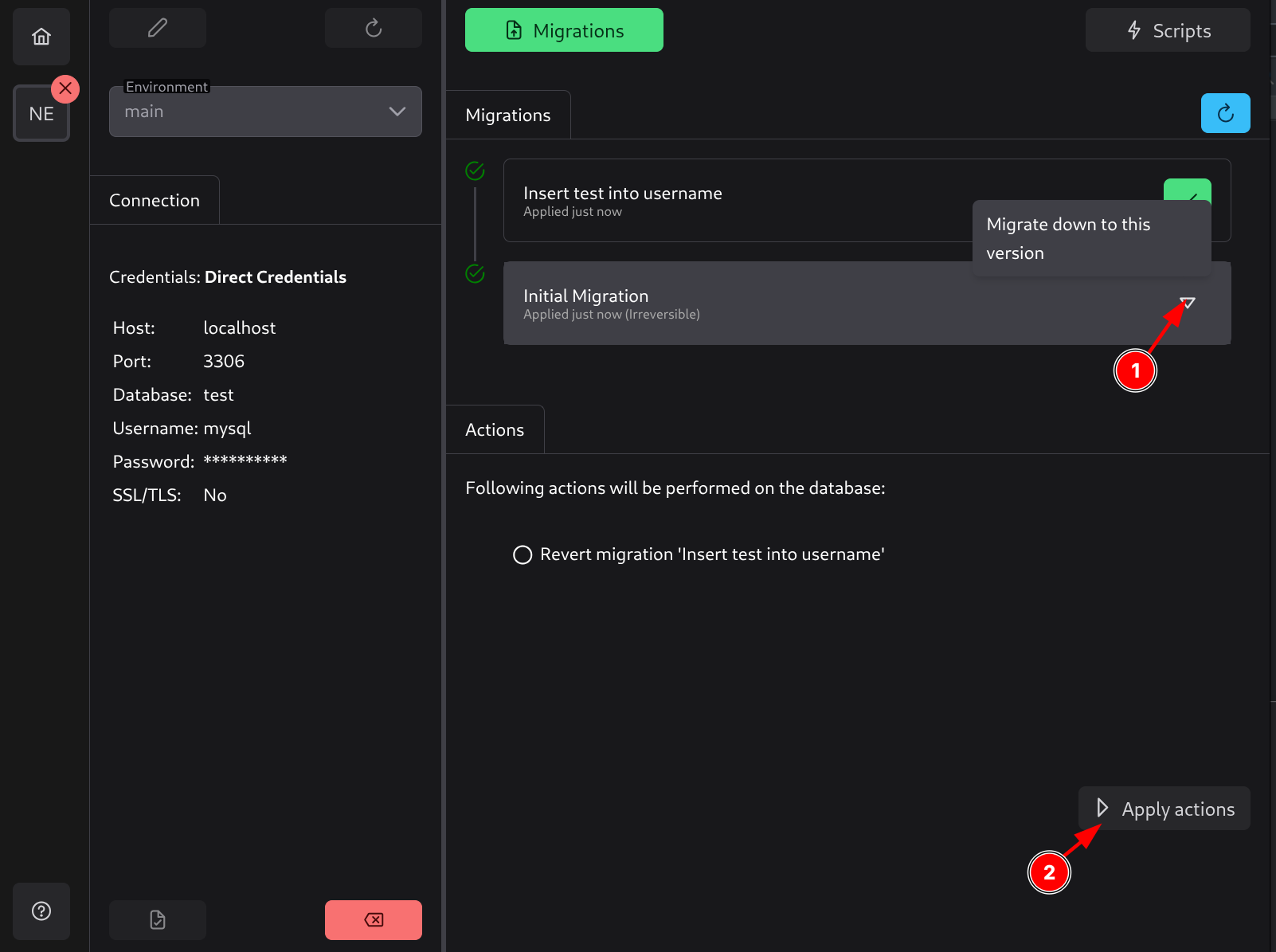
After applying migrations, they will show a green checkmark indicating they have been applied. To revert a migration, you need to select a migration before the applied migration, as shown in the image (1).
If a migration is irreversible (as is the case with the Initial migration), this means you cannot revert past this migration as it does not have any down migration logic, meaning it cannot be safely reverted.
To finish reverting the migrations, click Apply Actions (2).